← Back to Nah Crypto Tax Tracker
Published by the maker of the Nah Crypto Tax Tracker (paid product, see the end of this page).
Not tax advice. This guide is general information for organising records. Tax rules differ by country and change over time; check your own situation with a qualified tax professional. Nothing here promises any tax outcome.
Nah is not affiliated with, endorsed by or sponsored by Phantom, Pump.fun, Solscan or Solana. Names are used only to describe where data comes from. Crypto assets are volatile; you can lose some or all of your money. Do your own research.
Pump.fun made launching and trading new Solana tokens fast, and that speed is exactly what makes record-keeping painful. A busy afternoon can produce dozens of trades in tokens that are gone by the evening. This guide covers record-keeping, not the tax law of your country.
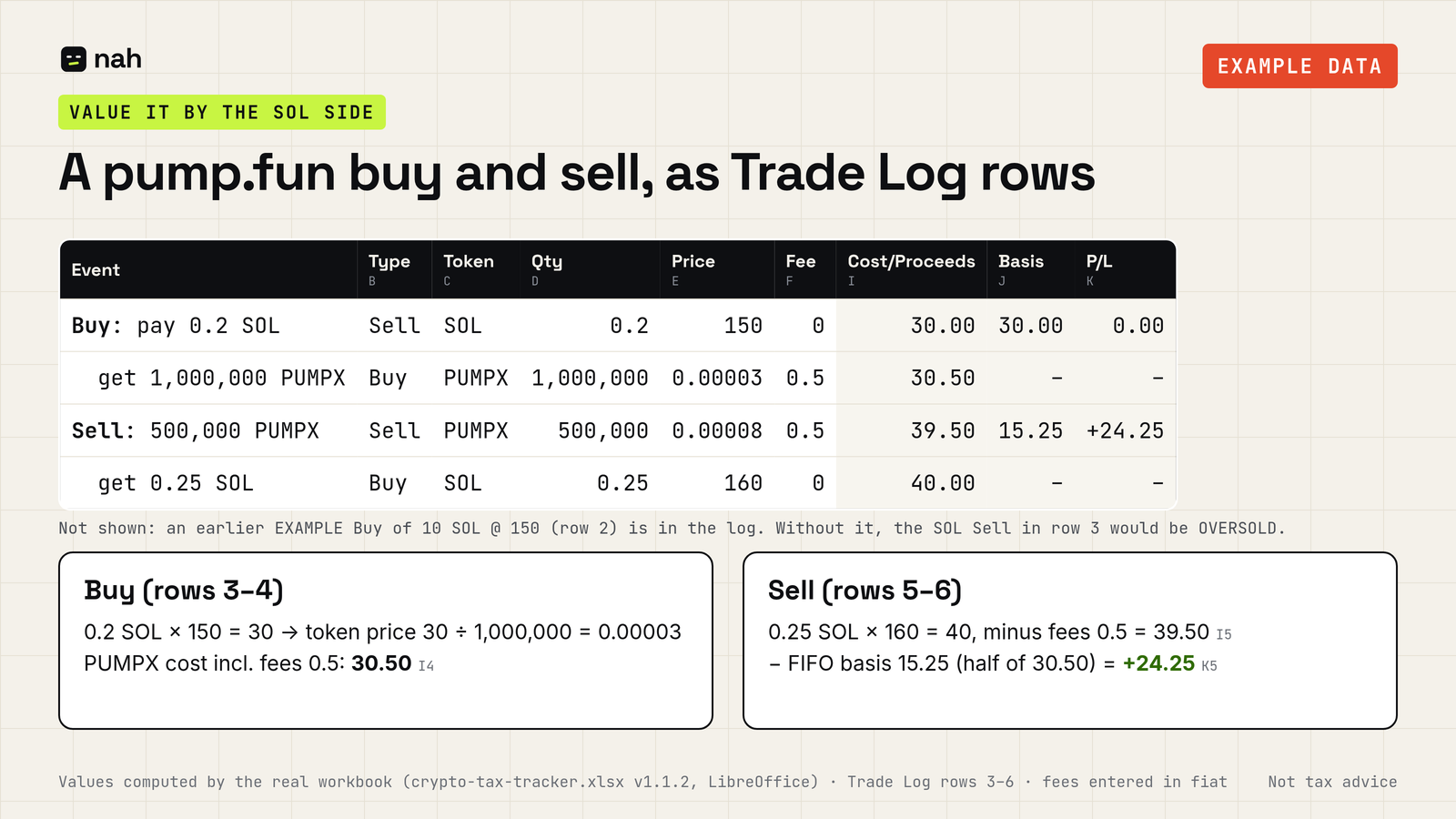
Buying a token on pump.fun means paying SOL and receiving the token. Selling means the reverse. In a tax log, each of those is typically recorded as two events: disposing of one asset and acquiring another, valued in your home currency at the time. Whether and how each disposal is taxed depends on your country, so check your local rules.
If you log a pump.fun buy as "Sell SOL + Buy token", the SOL row is a Sell. The workbook checks every Sell: if you sell more of a token than your earlier Buys of that token add up to (by date; on the same date, only Buy rows above it count), the Check column shows OVERSOLD, and FIFO cost basis isn't calculated for that row. So a log that starts with your first pump.fun trade, without the SOL you bought before, will flag the SOL leg.
The fix: first log how you got the SOL, as a Buy row with its date, quantity, price and fee (for example the exchange purchase before you sent SOL to your wallet). If you got the SOL some other way, ask your advisor what cost to use. Then the SOL Sell rows have lots to draw from. The Summary tab counts rows that aren't OK; fix every flagged row before relying on any figure.
A trade often has two costs: a platform or trading fee, and the Solana network fee. The Nah workbook has one Fee column, entered in the same fiat currency as your prices. So add both fees together and convert them to fiat at the time of the trade. For example (made-up numbers): a trading fee of 0.002 SOL plus a network fee of 0.00001 SOL, with SOL at 150, gives (0.002 + 0.00001) × 150 = 0.3015 in the Fee column. The workbook adds the fee to a Buy's cost (qty × price + fee) and subtracts it from a Sell's proceeds (qty × price − fee). When a swap is logged as two rows, enter the combined fee on one row only, so it isn't counted twice. In our examples it goes on the token's row (its Buy when you buy, its Sell when you sell). Pick one rule, keep it all year, and ask your advisor if your country treats fees differently. The Summary tab also totals the Fee column per year. How fees are treated for tax depends on your country.
You trade from your own self-custody wallet (Phantom, for example, issues no tax forms; see the export section below). We haven't found an official pump.fun statement about tax reporting, so plan on building your own records from on-chain data.
Phantom doesn't issue tax forms; its help center points you to block explorers such as Solscan (Phantom). Paste your public address (never your recovery phrase) into solscan.io and use Export CSV. Each export returns only the latest 1,000 records (Solscan), so export by date range and repeat for every address. Step-by-step Solscan export.
Pump.fun trades usually show up under DeFi Activities or Balance Changes rather than plain Transfers. Spot-check a few rows before trusting a whole file.
Many pump.fun tokens never get a reliable price feed. The cleanest approach is usually to value each trade by the SOL side, which does have a market price, and note the source you used for the SOL/fiat rate. Stick to one method all year.
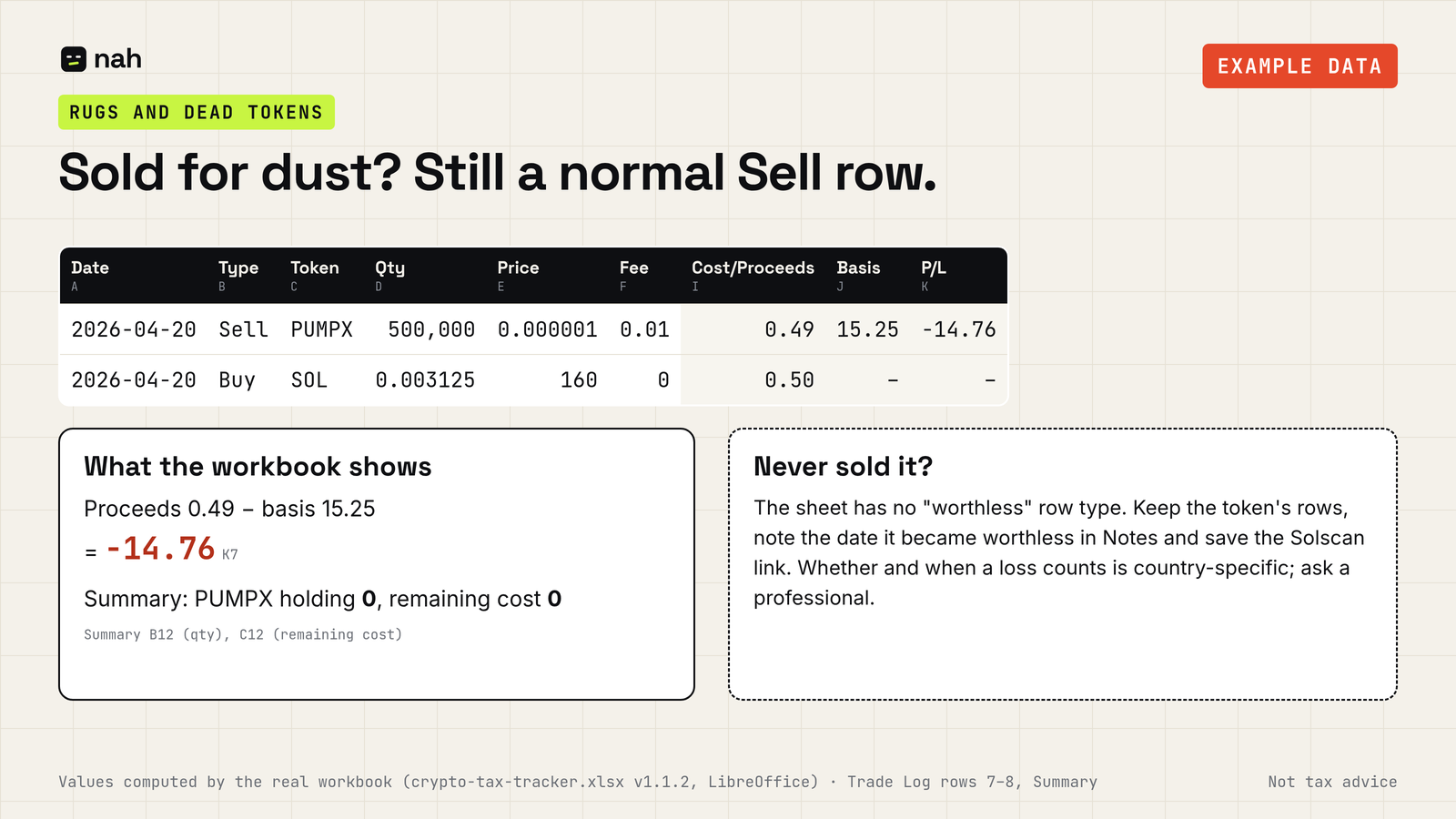
Tokens that go to zero are common. How a worthless token is treated is a question for your tax advisor. Practically: keep the token rows in your log and save the Solscan link. The workbook has no Worthless type: you can only write the date it became worthless in the Notes column, and that note is not calculated. If you sold it for dust, that sale is a normal Sell row with tiny proceeds.
The sheet runs FIFO across everything in one file. If you need separate records per wallet, use one copy of the sheet per wallet and keep a separate record of own-wallet transfers; the sheet does not carry cost basis between copies. Whether you need this is a question for your tax advisor. More on several wallets.
For occasional trading, yes. A clear log with FIFO per token gives you transparent gain/loss figures. For hundreds of trades a week, manual entry stops being realistic. Software that imports by public address, plus your own Solscan backups, is the more sensible route, ideally reviewed by a crypto-savvy accountant.
We sell the Nah Crypto Tax Tracker: an .xlsx template plus a PDF guide for 29 USDC. You log buys and sells (a swap is entered as a sell plus a buy), and it works out FIFO cost basis, realized gain/loss per year and current holdings by token. Airdrops are not calculated automatically: you can log them manually as a Buy row at a value you choose (e.g. 0 or fair value; ask an advisor which), as explained in the guide. The workbook accepts only Buy and Sell rows; transfers and staking can only be noted in the Notes column and are not calculated. It has one Fee column (in fiat), and its Summary covers the years 2024–2030. It is not tailored to any country's tax rules. It is not a tax calculator: it gives you gain/loss figures, not the tax you owe. It does not calculate what you owe under any country's law, it has no wallet import, and delivery is manual: after paying you email your order reference and get a download link, usually within 24 hours. If you have thousands of trades, auto-import software is probably the better fit. There's also a free trade-log template.
Not tax advice; consult a qualified tax professional. Sources were checked on 15 October 2026; information may become outdated. Nah is not affiliated with, endorsed by or sponsored by Phantom, Pump.fun, Solscan or Solana. Names are used only to describe where data comes from. Crypto assets are volatile; you can lose some or all of your money. Do your own research. Nah Crypto Tax Tracker · Contact: fabio-agent@mail.grokbot.com