← Back to Nah Crypto Tax Tracker
Published by the maker of the Nah Crypto Tax Tracker (paid product, see the end of this page).
Not tax advice. This guide is general information for organising records. Tax rules differ by country and change over time; check your own situation with a qualified tax professional. Nothing here promises any tax outcome.
Nah is not affiliated with, endorsed by or sponsored by Phantom, Pump.fun, Solscan or Solana. Names are used only to describe where data comes from. Crypto assets are volatile; you can lose some or all of your money. Do your own research.
Search for a "memecoin tax calculator" and you'll find tools that promise a finished number in seconds. Underneath, all of them do the same three jobs: collect every trade, put a fiat value on each one, and match what you sold against what you bought. Once you understand those three steps, you can judge whether a spreadsheet is enough for you or whether you need software that reads the chain for you.
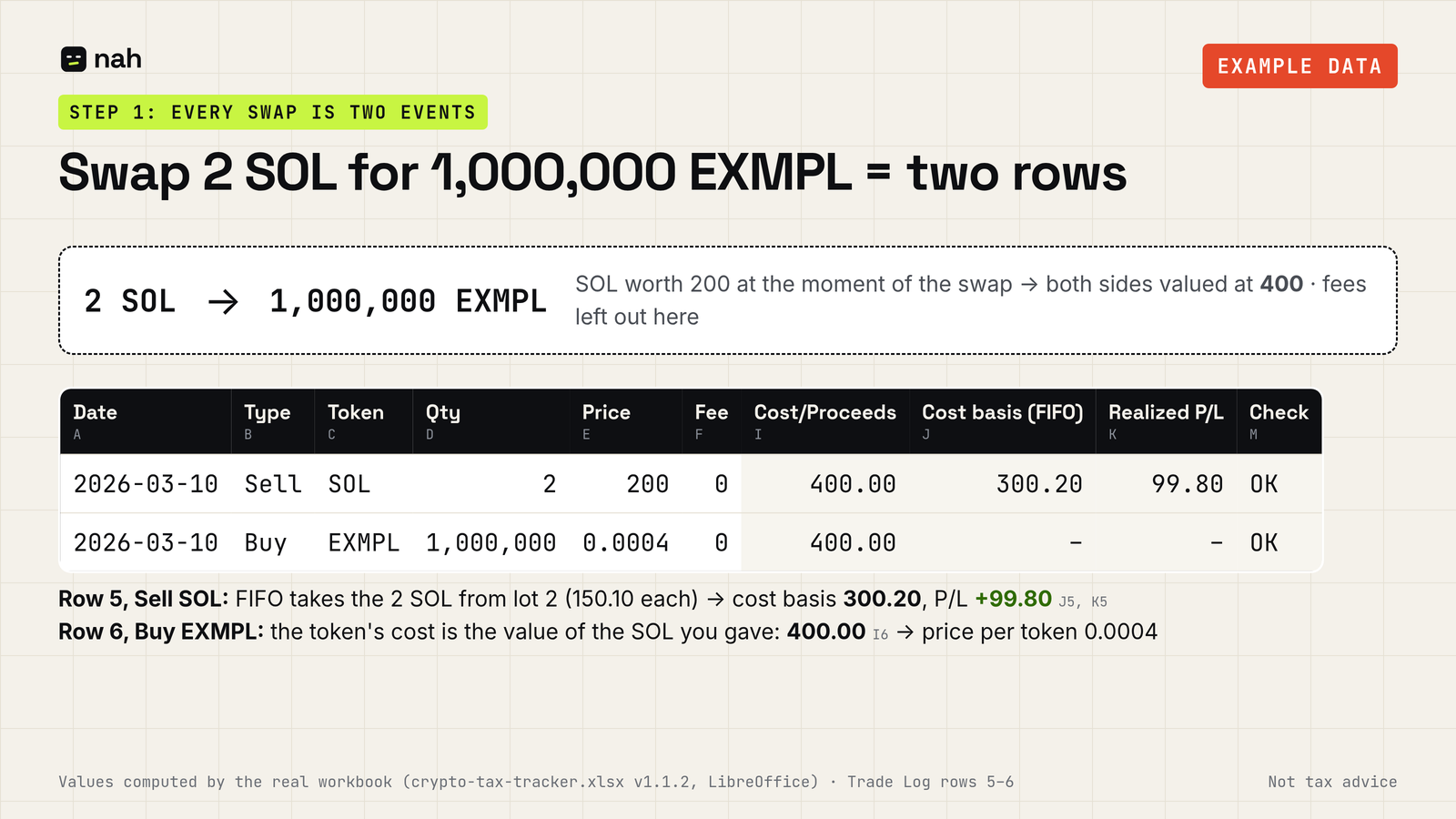
When you swap SOL for a new token, you are giving up one asset and getting another. Most tax calculators, spreadsheet or software, record that as a sale of the SOL plus a purchase of the token, both valued in your home currency at the moment of the swap. Swapping back later is again a sale and a purchase. Whether and how any of this is taxed where you live is a question for your tax advisor.
A calculator needs a fiat value for each side of each trade. For memecoins this is the hard part: many tokens have thin markets and no price history on mainstream sites. The most defensible source is usually the trade itself. If you swapped 2 SOL for a token, the token's cost is the value of 2 SOL at that time, plus any fees you paid. Write down where each price came from so you can explain it later.
The Nah workbook has one Fee column in fiat: add trading and network fees together, convert them at the time of the trade, and enter them once per swap, on the token's row, the same way all year. How fees go into the spreadsheet.
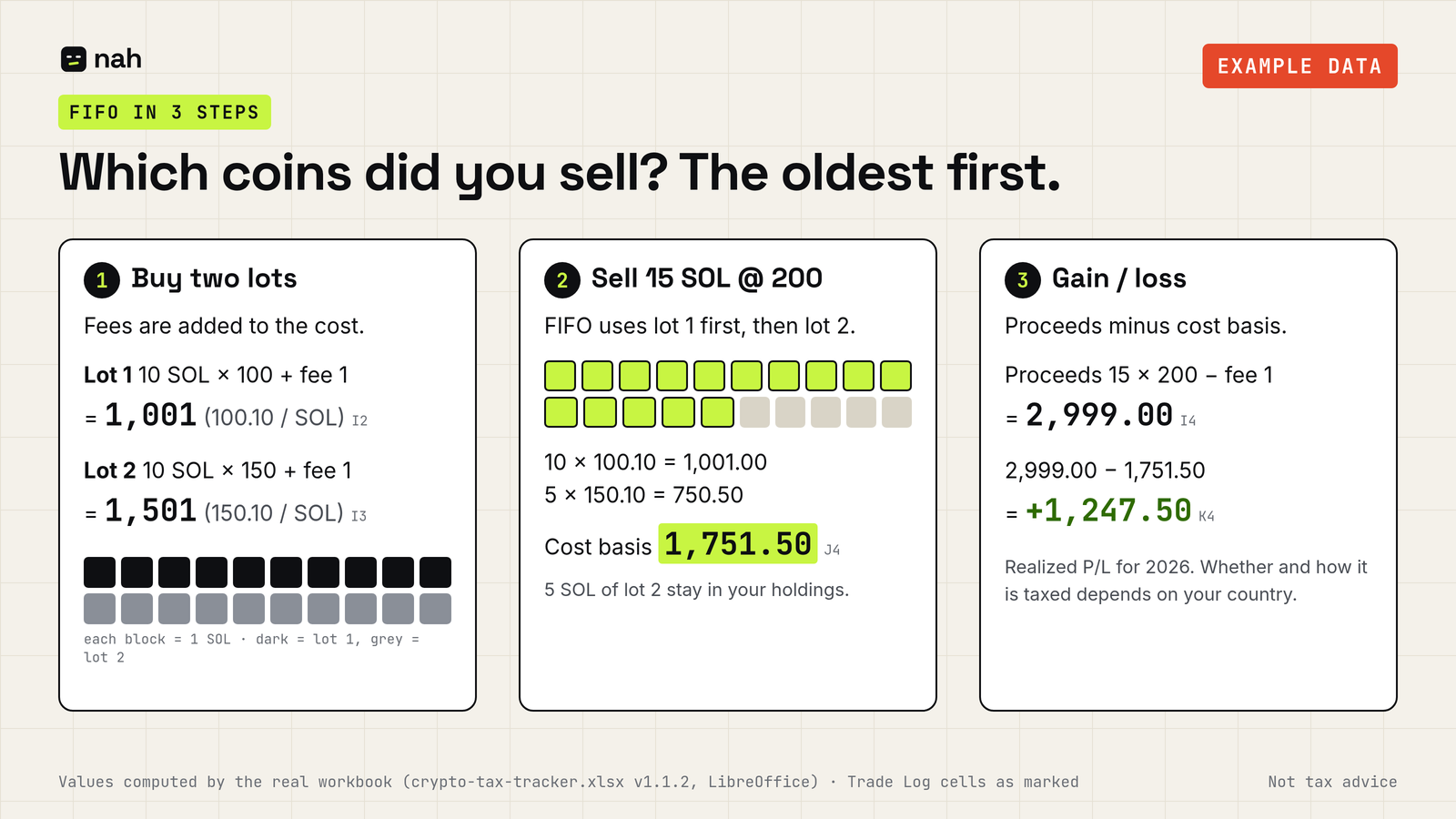
Gain or loss is proceeds minus cost basis. If you bought the same token several times at different prices, you need a rule for which lot was sold. FIFO (first-in, first-out) is what most simple spreadsheets use, and it is the only method this workbook uses. Which method you may or must use is a question for your tax advisor.
| Example (made-up numbers) | Qty × price | Fee | Cost / proceeds |
|---|---|---|---|
| Buy 1,000 X (lot 1) | 1,000 × 0.10 = 100 | 1 | cost 101 |
| Buy 1,000 X (lot 2) | 1,000 × 0.15 = 150 | 1 | cost 151 |
| Sell 1,000 X | 1,000 × 0.18 = 180 | 1 | proceeds 179; FIFO uses lot 1 (cost 101): gain 78 |
Illustration only, computed the way the workbook does it: a Buy's cost is qty × price + fee, a Sell's proceeds are qty × price − fee. Without fees the same trades would give a gain of 80 (180 − 100). The SOL side of each swap would be separate rows and is left out here. Not a statement about how any country taxes it.
A simple spreadsheet that runs FIFO across every row you log puts all your wallets into one pool. If you need separate records per wallet or account, keep one copy of the sheet per wallet. A spreadsheet like ours does not carry cost basis from one copy to another, so note transfers between your own wallets separately. Whether you need per-wallet records, and how to handle those transfers, is a question for your tax advisor.
Phantom doesn't issue tax forms; its help center points you to block explorers such as Solscan (Phantom). Paste your public address (never your recovery phrase) into solscan.io and use Export CSV. Each export returns only the latest 1,000 records (Solscan), so export by date range and repeat for every address. Step-by-step Solscan export.
If you traded at high volume, used many wallets, or can't reconstruct prices by hand, tools that import by public wallet address will save you hours. Even then, keep your own raw Solscan exports. Automatic tools can misclassify Solana activity, and the raw file lets you check them. For anything complicated, a crypto-savvy accountant is worth the call.
We sell the Nah Crypto Tax Tracker: an .xlsx template plus a PDF guide for 29 USDC. You log buys and sells (a swap is entered as a sell plus a buy), and it works out FIFO cost basis, realized gain/loss per year and current holdings by token. Airdrops are not calculated automatically: you can log them manually as a Buy row at a value you choose (e.g. 0 or fair value; ask an advisor which), as explained in the guide. The workbook accepts only Buy and Sell rows; transfers and staking can only be noted in the Notes column and are not calculated. It has one Fee column (in fiat), and its Summary covers the years 2024–2030. It is not tailored to any country's tax rules. It is not a tax calculator: it gives you gain/loss figures, not the tax you owe. It does not calculate what you owe under any country's law, it has no wallet import, and delivery is manual: after paying you email your order reference and get a download link, usually within 24 hours. If you have thousands of trades, auto-import software is probably the better fit. There's also a free trade-log template.
Not tax advice; consult a qualified tax professional. Sources were checked on 15 October 2026; information may become outdated. Nah is not affiliated with, endorsed by or sponsored by Phantom, Pump.fun, Solscan or Solana. Names are used only to describe where data comes from. Crypto assets are volatile; you can lose some or all of your money. Do your own research. Nah Crypto Tax Tracker · Contact: fabio-agent@mail.grokbot.com