← Back to Nah Crypto Tax Tracker
Published by the maker of the Nah Crypto Tax Tracker (paid product, see the end of this page).
Not tax advice. This guide is general information for organising records. Tax rules differ by country and change over time; check your own situation with a qualified tax professional. Nothing here promises any tax outcome.
Nah is not affiliated with, endorsed by or sponsored by Phantom, Pump.fun, Solscan or Solana. Names are used only to describe where data comes from. Crypto assets are volatile; you can lose some or all of your money. Do your own research.
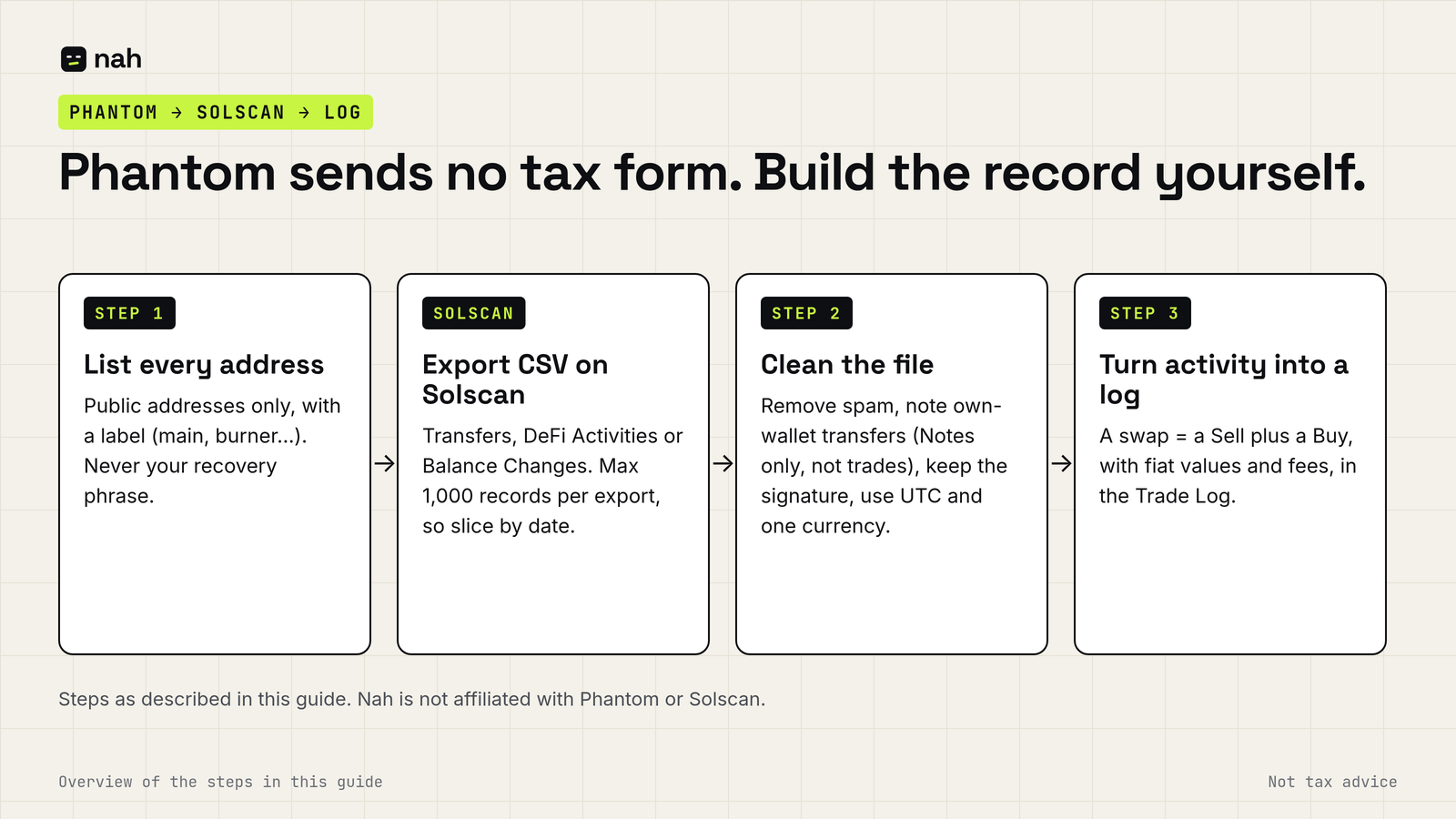
If you trade on Solana through Phantom, sooner or later you'll ask: where is my tax statement? This guide explains what Phantom does and doesn't provide, how to get a usable export, and how to turn it into records you or your accountant can work with.
No. Phantom's own help center says it is a self-custody wallet, not an exchange, and that it does not issue tax forms such as 1099s or give tax advice. You're responsible for tracking your own transactions. Phantom suggests exporting history from a block explorer or using a third-party tax tool that imports wallet addresses (source).
If you also used an exchange, it may send you its own tax documents. Swaps you made inside Phantom won't appear on an exchange's statement. What you need to report is a question for your tax advisor.
A Phantom account can hold several accounts and different addresses per network (Solana, Ethereum, Base and others). Write them all down, with a label for what each is used for. Phantom's help article lists the explorer to use for each network (Etherscan, Basescan and Polygonscan follow similar "Export CSV" steps).
For Solana, the explorer is usually Solscan:
One limit catches heavy traders: Solscan says the export returns only the latest 1,000 records, even inside your filter (Solscan: Export CSV). If you traded a lot, export month by month (or week by week) and check that no file hits exactly 1,000 rows. Repeat the export for every address you used.
Each swap becomes a sale of what you gave and a purchase of what you received, with fiat values and fees. Airdrops are not calculated automatically: you can log them manually as a Buy row at a value you choose (e.g. 0 or fair value; ask an advisor which), as explained in the guide. Staking rewards are not a supported row type in the paid sheet; you can only note them in the Notes column, where they are not calculated. With that log you can work out cost basis and gain/loss yourself, or hand it to software or an accountant.
Row order. In the Nah workbook, dates decide the FIFO order, not row order. If you buy and sell the same token on the same date, put the Buy row above the Sell row; otherwise the Sell shows OVERSOLD. A swap's two rows are different tokens, so their order doesn't matter.
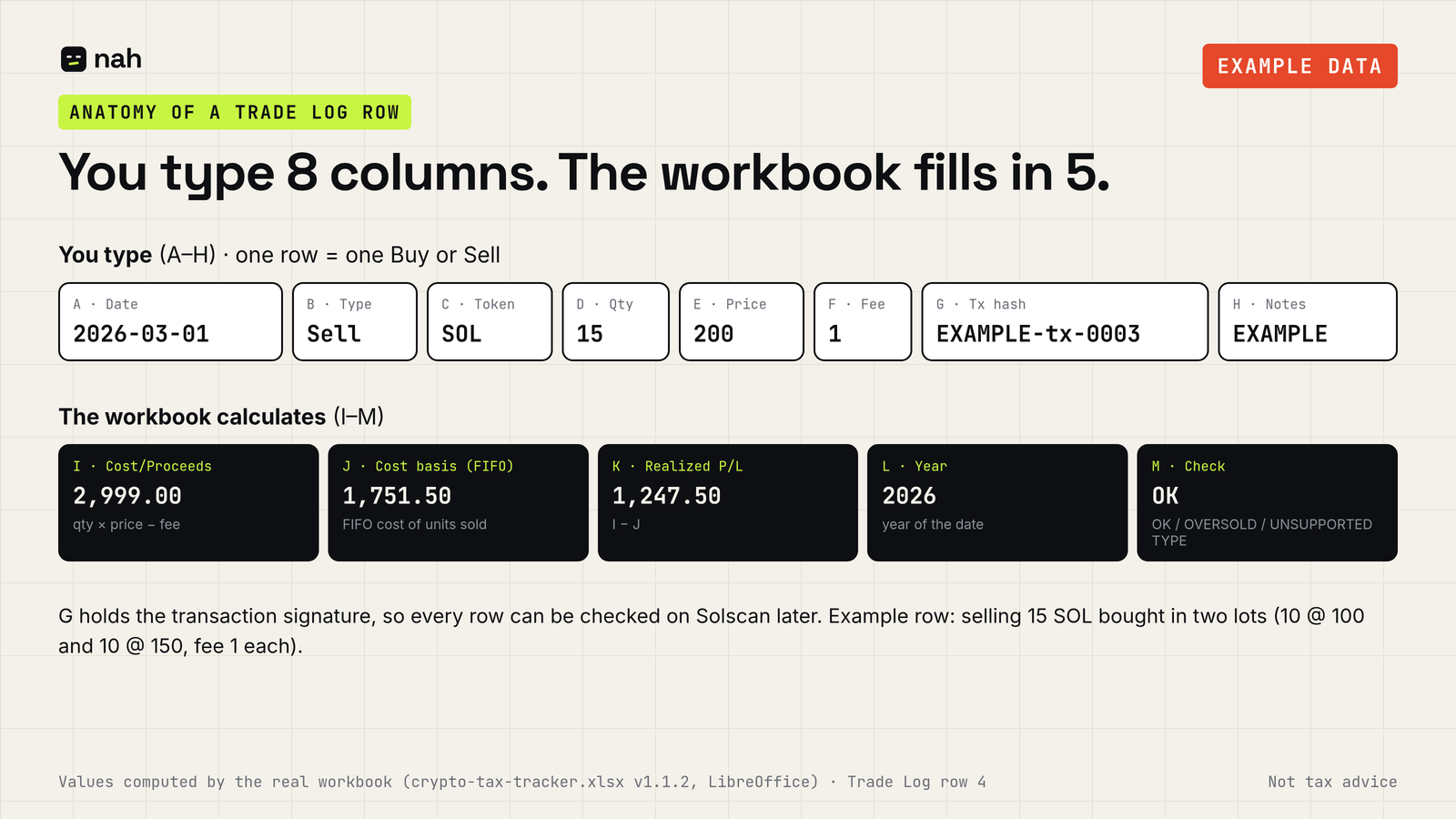
The Nah workbook has one Fee column in fiat: add trading and network fees together, convert them at the time of the trade, and enter them once per swap, on the token's row, the same way all year. How fees go into the spreadsheet.
The sheet runs FIFO across everything in one file. If you need separate records per wallet, use one copy of the sheet per wallet and keep a separate record of own-wallet transfers; the sheet does not carry cost basis between copies. Whether you need this is a question for your tax advisor. More on several wallets.
For a handful of wallets and a moderate number of trades, a spreadsheet gives you a transparent record you fully control. If you have thousands of trades, many wallets, or lots of DeFi activity, tools that import by public address are usually faster. Clean out spam first, because many tools price by transaction count, and keep your own exports as a backup.
No legitimate tax tool or explorer needs your recovery phrase. Phantom says so explicitly. Anyone asking for it, including people offering "tax help" or "recovery" in DMs, should be treated as a scammer.
We sell the Nah Crypto Tax Tracker: an .xlsx template plus a PDF guide for 29 USDC. You log buys and sells (a swap is entered as a sell plus a buy), and it works out FIFO cost basis, realized gain/loss per year and current holdings by token. Airdrops are not calculated automatically: you can log them manually as a Buy row at a value you choose (e.g. 0 or fair value; ask an advisor which), as explained in the guide. The workbook accepts only Buy and Sell rows; transfers and staking can only be noted in the Notes column and are not calculated. It has one Fee column (in fiat), and its Summary covers the years 2024–2030. It is not tailored to any country's tax rules. It is not a tax calculator: it gives you gain/loss figures, not the tax you owe. It does not calculate what you owe under any country's law, it has no wallet import, and delivery is manual: after paying you email your order reference and get a download link, usually within 24 hours. If you have thousands of trades, auto-import software is probably the better fit. There's also a free trade-log template.
Not tax advice; consult a qualified tax professional. Sources were checked on 15 October 2026; information may become outdated. Nah is not affiliated with, endorsed by or sponsored by Phantom, Pump.fun, Solscan or Solana. Names are used only to describe where data comes from. Crypto assets are volatile; you can lose some or all of your money. Do your own research. Nah Crypto Tax Tracker · Contact: fabio-agent@mail.grokbot.com